You want the shortest Windows setup path
BLAZIN installs as a Windows application. There is no separate Android image, app store session, virtual device configuration, or shared-folder setup to maintain before adding the IPTV source.
Windows users often discover an IPTV app that was designed for Android and consider running it through BlueStacks or another emulator. That approach can work, but it adds an Android environment between Windows and the player. BLAZIN IPTV Player takes the direct route: it is built for Windows 10 and Windows 11 and installs through Microsoft Store.
This page is not an argument that emulators are always wrong. An emulator can make sense when a specific Android-only app is required or when matching the interface used on an Android device matters most. The comparison explains the practical differences in setup, keyboard and mouse use, source management, file paths, and playback.
Quick comparison
Compare the direct Windows route with the extra Android layer, including installation, file access, input, source support, and external players.
| Feature | BLAZIN IPTV Player | Android app through an emulator |
|---|---|---|
| Application layer | Runs directly on Windows | Creates an Android virtual device and runs the Android app inside it |
| Windows versions | Windows 10 and Windows 11 | BlueStacks 5 minimum supports Windows 7+; current recommended setup is Windows 10+ |
| Installation | Microsoft Store installation | Install BlueStacks, then install the Android app from a store or APK/XAPK |
| Keyboard and mouse | Desktop-oriented controls | BlueStacks officially supports keyboard and mouse controls and customizable mappings |
| Local M3U file | Uses a Windows file workflow | File sharing and paths depend on emulator configuration |
| M3U URL / M3U Plus | Supported | Depends on the selected Android app |
| Xtream Codes | Supported | Depends on the selected Android app |
| STB MAC / Stalker | Both supported | Depends on the selected Android app |
| EPG and artwork | Shown when supplied by the source | Depends on source and Android app |
| Live / Movies / Series | Separate sections when supplied | Depends on the selected Android app |
| External Windows players | VLC and MPC-HC/MPC-BE style workflows | Integration depends on emulator and Android app |
| Compatibility settings | Custom user agent and advanced Stalker/STB fields | Depends on the selected Android app |
| System layer | One Windows application | BlueStacks minimum lists 4 GB RAM and 5 GB storage; recommended setup lists 8 GB+ RAM, SSD, and virtualization |
| Trial | 7-day free trial through Microsoft Store | Terms vary across BlueStacks and the selected Android app |
| IPTV content included | No | An emulator does not supply lawful IPTV content |
The core difference is the application layer. BLAZIN runs directly on Windows, while an emulator creates an Android environment and then runs the selected IPTV app inside it.
A direct Windows workflow can simplify file access, keyboard and mouse use, and links to installed Windows players. An emulator can still make sense when the exact Android-only app or a matching Android interface is the priority.
Source support on the emulator side comes from the Android app, not from the emulator itself. Users should compare the exact app version with BLAZIN using the same authorized source.
Decision guide
BLAZIN installs as a Windows application. There is no separate Android image, app store session, virtual device configuration, or shared-folder setup to maintain before adding the IPTV source.
The BLAZIN interface is intended for PCs, laptops, Surface devices, and smaller Windows screens. Windows file selection and desktop player paths remain native to the operating system.
BLAZIN can use its internal player or launch VLC, MPC-HC, or MPC-BE style external playback. That path is direct and does not require the Android app to communicate through an emulator boundary.
A balanced comparison
If your lawful source or household workflow depends on the exact behavior of one Android app and no suitable Windows equivalent exists, an emulator may preserve that app experience.
Users who run several Android applications on Windows may already accept the extra environment and know how to manage updates, storage, input, and networking.
An emulator can provide a familiar interface when the same app is used on a phone, tablet, or Android TV device. Confirm that the app is intended to run correctly under the emulator you choose.
Recommendation
Choose BLAZIN when a direct Windows 10/11 installation, Windows file paths, documented source support, and direct external-player integration matter most. Choose BlueStacks when a particular Android-only app is required and its workflow has been verified inside the emulator.
Consider the whole system rather than assuming native always means faster or emulation always means slower. BlueStacks publishes minimum and recommended requirements, while the Android app determines actual IPTV features and behavior.
Detailed review
A native Windows player has one primary application layer. A BlueStacks setup includes the App Player and the Android IPTV app. Official instructions support installation from the BlueStacks Store, Google Play, or APK/XAPK files. Updates, storage, permissions, and troubleshooting can involve either layer.
BLAZIN opens local M3U files through Windows and accepts M3U and M3U Plus URLs. In an emulator, local files may need to be copied, shared, or selected through Android-visible storage. Remote URLs are handled by the chosen Android app.
BLAZIN includes Xtream Codes, STB MAC, and Stalker Portal profiles plus optional custom user agent and advanced compatibility fields. An emulator only provides Android execution; actual source support depends entirely on the installed app and version.
BLAZIN organizes source-provided Live TV, Movies, Series, categories, search, favorites, EPG, logos, and posters in a Windows interface. Emulator performance and external-player behavior depend on both the virtual Android environment and the selected app.
PC experience
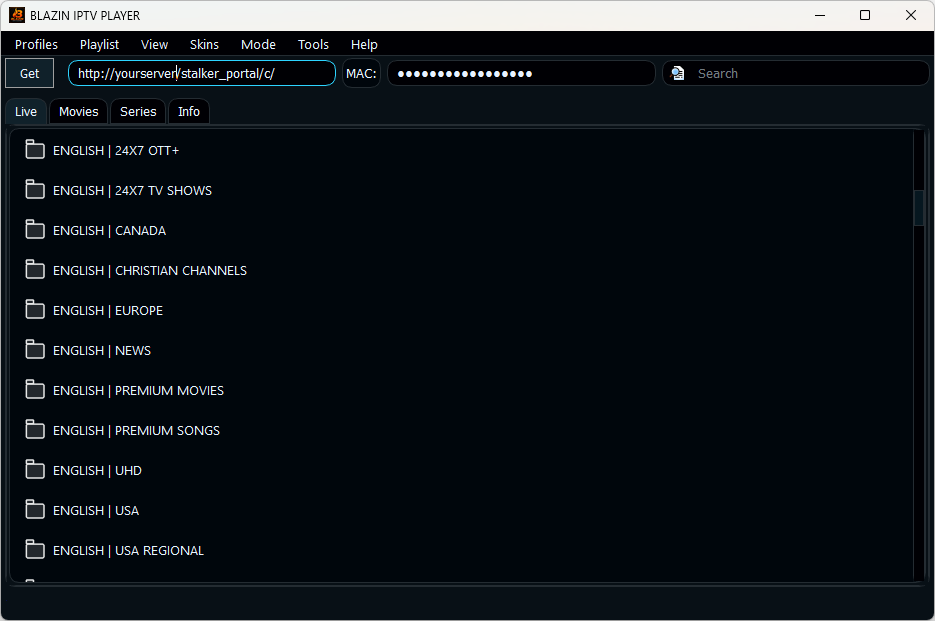
A BLAZIN profile remains inside the Windows application. Users can browse to a playlist file stored on the PC, paste a remote URL, or enter portal credentials. Search, favorites, categories, themes, and playback selection are reached with ordinary desktop controls.
The app is designed for Windows 10 and Windows 11, including laptops and smaller screens. Users who keep other applications open can use the compact player interface without first navigating an Android home screen or virtual device controls.
External playback is also a Windows-native decision. A user can select an installed VLC, MPC-HC, or MPC-BE executable. With an Android emulator, handing a stream to a Windows application may require support from both the Android app and emulator, so the behavior should be tested rather than assumed.
Bring your own source
BLAZIN supports local M3U playlist files, M3U playlist URLs, M3U Plus, Xtream Codes login, STB MAC login, and Stalker Portal login. It can display EPG, logos, posters, and categories when the user's source supplies compatible data.
BlueStacks does not determine IPTV compatibility. The Android app installed inside it determines whether M3U, Xtream Codes, STB MAC, Stalker Portal, EPG, or external playback are available. Feature sets and permissions can change by app version.
Before choosing either route, identify the credentials or playlist format you actually have. Then test loading, category navigation, guide accuracy, and playback with the same authorized source.
Important legal note
Running an Android app through BlueStacks does not provide media rights, and installing a native Windows player does not provide a television service. The authorization requirement is the same in both workflows.
BLAZIN IPTV Player does not provide IPTV channels.
BLAZIN IPTV Player does not provide playlists.
BLAZIN IPTV Player does not provide subscriptions.
BLAZIN IPTV Player does not provide provider accounts.
Users must provide their own legal IPTV source.
Verification
FAQ
No. BLAZIN IPTV Player runs directly on Windows 10 and Windows 11.
No. An emulator may fit when a specific Android-only app is required. A native app is often simpler for Windows file paths, desktop input, and external Windows players.
Yes. It supports local M3U playlist files, M3U URLs, and M3U Plus URLs.
Yes. BLAZIN supports external VLC and MPC-HC/MPC-BE style workflows as well as its internal player.
No. The Store provides the BLAZIN player and its 7-day free trial. Users must bring their own legal IPTV source.
Related guides
Review direct installation and Windows 11 source setup.
See how BLAZIN works across supported Windows PCs and laptops.
Decide between direct stream playback and an organized IPTV library.
Microsoft Store
Install BLAZIN directly on Windows and use the trial to measure whether it simplifies your current emulator-based playlist or portal routine.