
Your source contains a large organized library
BLAZIN can separate Live TV, Movies, and Series, retain source categories, and add search and favorites. That is more practical than treating thousands of items as one undifferentiated playback list.
VLC is an excellent general-purpose media player, and for some IPTV tasks it may be all you need. If you have one playable network URL or a small M3U list and simply want to open it, VLC offers a direct path from source to playback. BLAZIN IPTV Player addresses a different problem: organizing an IPTV source before and around playback on Windows.
This guide compares the two workflows rather than pretending they are direct substitutes for every task. BLAZIN can use an internal player and can also launch VLC externally, so the choice is not always BLAZIN or VLC. Many users can browse and organize inside BLAZIN, then keep VLC as their selected playback application.
Quick comparison
The table separates VLC's strength as a general media player from BLAZIN's role as an organizer for supported IPTV source types.
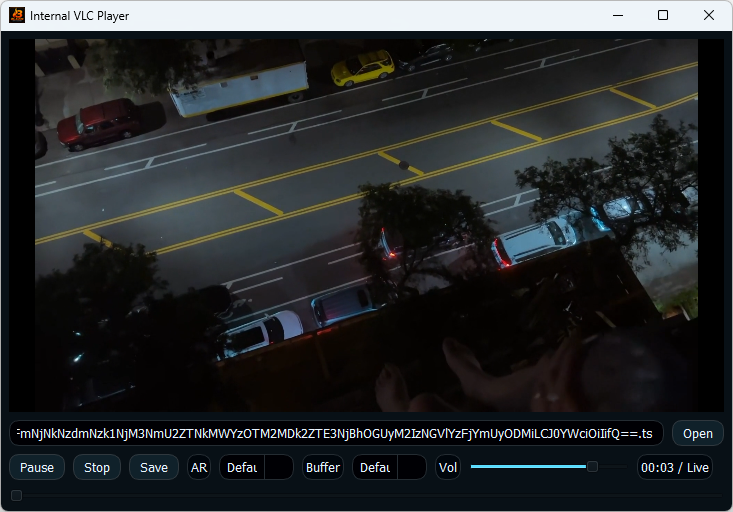
| Feature | BLAZIN IPTV Player | VLC media player |
|---|---|---|
| Main purpose | IPTV source organization and playback | General-purpose media playback |
| Simple stream URL | Playable after loading through a supported source workflow | A strong fit for opening a direct network stream |
| M3U playlist | Local M3U files and remote M3U URLs | Can open supported playlist files and network locations |
| Xtream Codes | Dedicated login workflow | Not a dedicated account-library workflow |
| STB MAC / Stalker | Dedicated portal login workflows | Not VLC's main public positioning |
| Live / Movies / Series | Separate sections when supplied by the source | No equivalent BLAZIN-style IPTV library organization |
| Categories | Source-provided categories | Playlist order and VLC playlist tools |
| EPG / TV guide | Displayed when compatible source data is available | Not a dedicated BLAZIN-style EPG workflow |
| Search and favorites | IPTV list search and source-specific favorites | General playlist and media controls |
| Logos and posters | Shown when the source provides compatible metadata | Not the central VLC playlist workflow |
| Internal playback | Included | Playback occurs directly in VLC |
| External playback | Can launch VLC, MPC-HC, or MPC-BE | VLC is itself the player |
| Windows focus | Windows 10 and Windows 11 | Available on Windows and other platforms |
| IPTV content included | No | No; VLC is a media player |
VLC starts from playback: open a supported file, playlist, or network location and play it. That direct approach is often ideal for a single stream or a small playlist.
BLAZIN starts from source organization. It builds Live TV, Movies, Series, categories, search, favorites, guide data, and artwork views when compatible information is supplied, then plays internally or hands the selected item to VLC or another external player.
These workflows can complement each other. A Windows user can use BLAZIN as the IPTV library and keep VLC as the playback application.
Decision guide
BLAZIN can separate Live TV, Movies, and Series, retain source categories, and add search and favorites. That is more practical than treating thousands of items as one undifferentiated playback list.
Xtream Codes, STB MAC, and Stalker Portal users need login and data-loading workflows that go beyond opening a network location. BLAZIN provides dedicated setup paths for those source types.
Compatible EPG data, channel logos, movie posters, and series posters can appear in BLAZIN when supplied by the source. Those elements support browsing before playback rather than only controlling the current video.
A balanced comparison
VLC is often enough when the task is opening a known stream or local media file. Adding a library layer may not improve a simple one-item workflow.
A short M3U playlist can be easy to manage in VLC. Search, profiles, portal compatibility, and separate content sections may be unnecessary for that use case.
If IPTV is only a small part of a broader local-file and network-media routine, keeping everything in a familiar general-purpose player can be more convenient.
Recommendation
Use VLC when direct playback of a supported file, playlist, or network stream is the whole job. Use BLAZIN when the job also includes IPTV source profiles, Live TV/Movies/Series organization, EPG, categories, search, favorites, or portal logins.
A combined workflow is often the most practical: organize the legal source in BLAZIN and select VLC as the external player.
Detailed review
VLC generally starts with something playable: a file, disc, device, playlist, or network location. BLAZIN starts with an IPTV source profile and builds a browsing view from the data returned. The difference is most visible with categories and large libraries.
BLAZIN can display EPG information beside Live TV when compatible data is provided. Search and favorites help users return to items in a large source. VLC remains focused on media playback and playlist control rather than reproducing BLAZIN's guide-centered interface.
When a source includes compatible metadata, BLAZIN shows Movies and Series separately and can display posters. VLC can play the resulting media URL, but it is not positioned here as an IPTV catalog browser with the same source-aware organization.
External playback is the bridge between the products. A user can browse a source in BLAZIN, select an item, and open it in VLC. That preserves VLC's familiar playback controls while adding BLAZIN's profiles, categories, search, favorites, and EPG workflow.
PC experience
BLAZIN runs on Windows 10 and Windows 11 and stores the IPTV setup in a desktop-oriented interface. Local playlist users can open an M3U file, while remote playlist and portal users can save connection profiles. The same window provides source sections, categories, search, favorites, and themes.
For playback, users can remain inside BLAZIN or select an installed external player. VLC is one supported external workflow, alongside MPC-HC and MPC-BE style setups. This can be valuable when different streams behave better with a preferred player configuration.
VLC is also comfortable on Windows, but the desktop question is different: do you want a general media player that opens the source directly, or an IPTV-focused organizer that can delegate playback? The answer depends on the size and type of source you manage.
Bring your own source
BLAZIN supports local M3U files, M3U URLs, M3U Plus, Xtream Codes, STB MAC, and Stalker Portal. These are distinct setup paths because a playlist file and a portal login do not return data in the same way.
VLC can open supported media, playlists, and network locations, making it well suited to direct playback. It should not be assumed to provide the same dedicated profile managers or portal-specific library organization described for BLAZIN.
Whichever playback path is used, EPG, categories, channel logos, posters, and content availability depend on the user's legal source. A player cannot create missing provider metadata.
Important legal note
VLC and BLAZIN are playback software, not sources of television service. VideoLAN's official documentation positions VLC as a player for files, discs, devices, and streams; opening a URL does not establish authorization to its content.
BLAZIN IPTV Player does not provide IPTV channels.
BLAZIN IPTV Player does not provide playlists.
BLAZIN IPTV Player does not provide subscriptions.
BLAZIN IPTV Player does not provide provider accounts.
Users must provide their own legal IPTV source.
Verification
FAQ
VLC can open supported playlist files and network locations. For a small, direct playback workflow, that may be sufficient.
BLAZIN adds IPTV-focused source profiles, sections, categories, EPG, search, favorites, and source-provided artwork around playback.
Yes. VLC is supported as an external player workflow, so users can organize in BLAZIN and play in VLC.
No. Compatible EPG, logos, and posters appear only when the user's source provides them.
No. BLAZIN does not include channels or subscriptions, and VLC is a general media player. Users must provide an authorized source.
Related guides
Compare local playlist files, remote playlist URLs, and M3U Plus.
Understand why TV guide coverage depends on source-provided data.
Explore profiles, categories, favorites, themes, and player choices.
Microsoft Store
Test BLAZIN's library tools while keeping VLC available as an external player, then decide whether the added organization helps your setup.