

Local playlist files
Open a saved M3U file from your Windows PC.
Add your own legal M3U playlist to BLAZIN IPTV Player, then test categories, EPG data, logos, favorites, and playback on Windows.
Windows IPTV guide
M3U setup should be simple, but the details matter. A local file, an M3U URL, an M3U8 stream list, and an M3U Plus URL can behave differently depending on how your legal source structures the playlist.
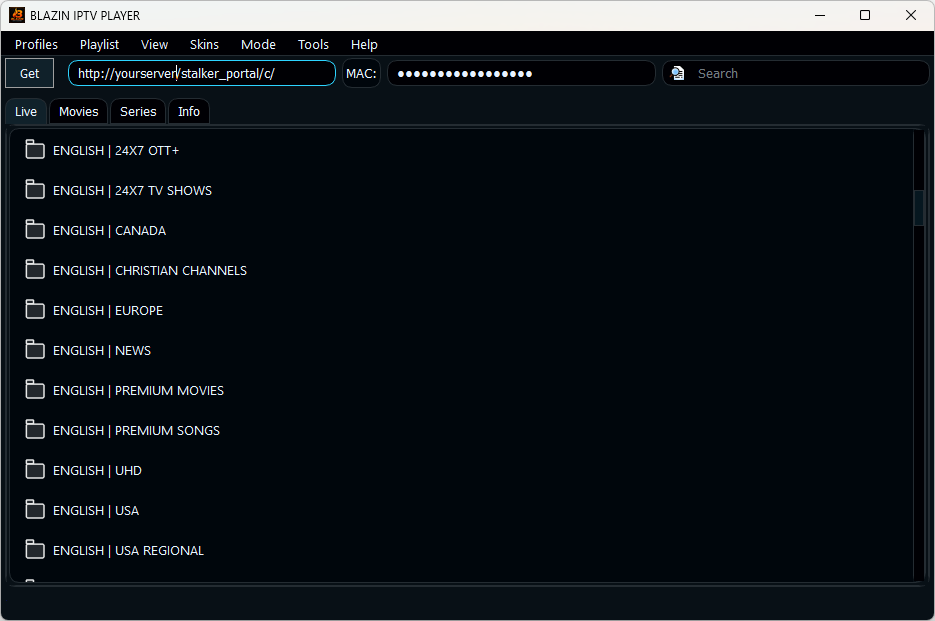
BLAZIN IPTV Player gives Windows users a dedicated player workflow for playlist files and URLs instead of making them manually manage links in a generic media player. After loading, the app can organize available sections and metadata when the playlist includes them.
Why BLAZIN fits this workflow
Open a saved M3U file from your Windows PC.
Paste the full M3U or M3U Plus URL from your legal source.
Display EPG, logos, and groups when compatible data is included.
Use categories, search, and favorites after the source loads.
Try internal playback and external player workflows.
Keep setup details easier to manage for repeated use.
Practical comparison
The details that matter for adding an m3u playlist on windows are practical: whether your source loads, what metadata appears, how quickly you can browse, and whether the player gives you control over playback and compatibility. BLAZIN is designed to make those checks visible inside a Windows desktop workflow.
| Decision point | What Windows users should check | How BLAZIN IPTV Player helps |
|---|---|---|
| Playlist type | Is it a file, URL, M3U8 list, or M3U Plus URL? | BLAZIN supports local files and remote playlist workflows. |
| Complete URL | Does the URL include the full path and required parameters? | Paste the complete URL exactly as supplied by your legal source. |
| Groups/categories | Does the playlist include group data? | BLAZIN can show categories when the playlist supplies them. |
| Guide data | Is EPG supplied in or alongside the source? | BLAZIN can show guide data when compatible data is provided. |
| Playback | Do streams open reliably? | Test several items with internal and external playback options. |
7-day trial checklist
Avoid setup mistakes
FAQ
No. You must provide your own legal M3U file or URL.
Yes. BLAZIN supports local M3U playlist files on Windows.
No. BLAZIN IPTV Player is player-only software. It does not provide channels, playlists, subscriptions, provider accounts, or copyrighted content.
Yes. The Microsoft Store listing includes a 7-day free trial so you can test your own legal playlist, login, EPG data, and playback workflow first.
Related BLAZIN guides
Start with the main Windows IPTV Player page and review the full BLAZIN workflow.
Compare the Windows features that matter before choosing a player.
Use the native Windows 11 guide when you do not want an emulator workflow.
Full guide for local files, M3U URLs, M3U8, and M3U Plus.
Learn how M3U Plus differs from a basic playlist URL.
Load local M3U files, M3U URLs, M3U8 playlists, and M3U Plus sources.
Use server URL, username, and password workflows with your own legal source.
Microsoft Store
Install the Windows app, add your own legal IPTV source, and test categories, playback, EPG, search, favorites, and source compatibility on your own PC.
BLAZIN IPTV Player is player-only software. It does not provide channels, playlists, streams, provider accounts, subscriptions, or copyrighted content.