

Source setup
Use the source format your legal provider supplies instead of forcing another workflow.
Understand the difference between STB MAC and Stalker Portal wording before testing your own legal portal source in BLAZIN IPTV Player.
Windows IPTV guide
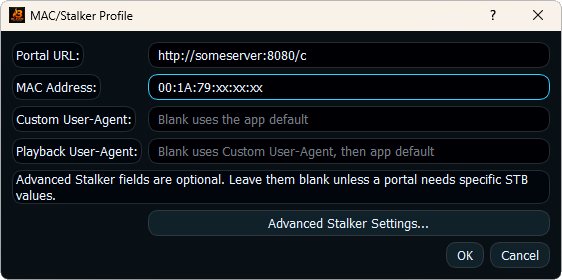
STB MAC and Stalker Portal terms are often used around portal-style IPTV setups. In practice, users need to know what portal URL, MAC-style detail, user agent, or compatibility fields their legal source expects.
BLAZIN includes both STB MAC and Stalker Portal workflows, along with custom user agent and advanced STB/Stalker fields for sources that require more specific setup.
Why BLAZIN fits this workflow
Use the source format your legal provider supplies instead of forcing another workflow.
Browse categories, search, favorites, Live TV, Movies, and Series where the source provides them.
Display guide data, logos, movie posters, and series posters when compatible data is included.
Test internal playback or external VLC/MPC-style workflows.
Use custom user agent and advanced portal fields where relevant.
Test the workflow on your own Windows PC before deciding.
Practical comparison
The details that matter for stb mac and stalker portal workflows are practical: whether your source loads, what metadata appears, how quickly you can browse, and whether the player gives you control over playback and compatibility. BLAZIN is designed to make those checks visible inside a Windows desktop workflow.
| Decision point | What Windows users should check | How BLAZIN IPTV Player helps |
|---|---|---|
| Source details | Do you have the exact file, URL, login, or portal information? | BLAZIN provides dedicated workflows for common source types. |
| Organization | Does the source expose groups, categories, Movies, or Series? | BLAZIN shows those structures when the source returns compatible data. |
| Guide and artwork | Does the source include EPG, logos, or posters? | BLAZIN displays compatible guide and artwork data when provided. |
| Playback | Do streams work well on your device? | Test internal playback and external VLC/MPC-style workflows. |
| Trial decision | Can you verify the workflow before paying? | Use the 7-day Microsoft Store trial with your own legal source. |
7-day trial checklist
Avoid setup mistakes
FAQ
No. It explains player software only. BLAZIN does not provide IPTV service or content.
Yes, when your own legal source supplies the required playlist, login, portal, guide, or stream data.
No. BLAZIN IPTV Player is player-only software. It does not provide channels, playlists, subscriptions, provider accounts, or copyrighted content.
Yes. The Microsoft Store listing includes a 7-day free trial so you can test your own legal playlist, login, EPG data, and playback workflow first.
Related BLAZIN guides
Start with the main Windows IPTV Player page and review the full BLAZIN workflow.
Compare the Windows features that matter before choosing a player.
Use the native Windows 11 guide when you do not want an emulator workflow.
Compare local files, URLs, M3U8 links, and M3U Plus workflows.
Review how M3U Plus can organize Live TV, Movies, Series, and categories.
Load local M3U files, M3U URLs, M3U8 playlists, and M3U Plus sources.
Use server URL, username, and password workflows with your own legal source.
Microsoft Store
Install the Windows app, add your own legal IPTV source, and test categories, playback, EPG, search, favorites, and source compatibility on your own PC.
BLAZIN IPTV Player is player-only software. It does not provide channels, playlists, streams, provider accounts, subscriptions, or copyrighted content.